User Management  

User Management allows tenant administrators to control who has access to their Update Factory tenant — without involving Kynetics support.
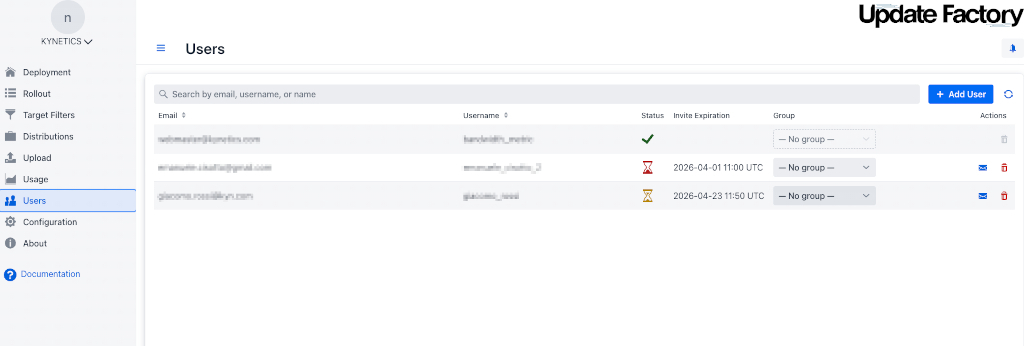
From this view you can:
- Invite new users to your tenant via email
- Assign or remove users from permission groups
- Edit a user's profile information
- Remove a user's access to your tenant
The User Table
The main element of the User Management view is the user table: a table where each row represents a user authorised in your tenant. Group assignment is managed through a single Group column with a dropdown selector.
Groups are pre-configured by Kynetics operators. They define the permission boundaries of their members. As a tenant administrator, you manage who is in each group — not the groups themselves or their permission statements.
Each row in the table displays:
- The user's email address
- The user's username
- The user's current group assignment (editable via a dropdown)
- An invitation status badge:
- Green check — active user
- Yellow hourglass — invitation pending
- Red hourglass — invitation expired
- The Invite Expiration value for users whose invitation is still pending or expired
- Action icons — resend invitation (mail) and remove (trash)
User Details
Hovering over the email cell of a user opens a detail popover.
The popover always shows:
- Display name
- Username
- Status
Depending on the user state, it may also show:
- Invitation expires — for pending or expired invitations
- Password expires — when password information is available
- Description — when the field is not empty
Inviting a User
To invite a new user to your tenant:
- Click the Invite User button (plus icon) at the top of the User Management view.
- Step 1: enter the user's email address.
- The system checks whether that email already belongs to an existing Update Factory user and whether the invitation can proceed.
- If the email belongs to a new user, Step 2 is shown. Fill in:
- First name and Last name
- Username — a unique lowercase identifier (letters, digits, and underscores only)
- Description (optional)
- Click Send Invitation.
An invitation email is sent to the specified address. The link included in the email is valid for 7 days.
Note
- If a user with the given email already exists in Update Factory (e.g., they are a member of another tenant), the existing account is reused. No duplicate account is created.
- Pending (unaccepted) invitations count toward your tenant's user quota.
Warning
Your subscription plan defines a maximum number of users. If the quota is reached, an error is displayed and no invitation is sent. Contact Kynetics support to increase your user limit.
Accepting an Invitation
The invited user receives an email with a unique acceptance link. Clicking the link opens the Accept Invitation page:
- New Update Factory users are directed to set up a password before being redirected to the login page.
- Existing Update Factory users (already a member of another tenant) are redirected directly to the login page; their credentials are unchanged.
No authentication is required to follow the invitation link.
Warning
Invitation links expire after 7 days. If the link has expired, the inviting user must resend the invitation (see Resending an Invitation).
Resending an Invitation
If the invitation email must be sent again, use the mail icon in the user's row.
- Locate the user in the table.
- Click the mail icon in their row.
For pending or expired invitations, a new invitation email is sent immediately. The previous link is invalidated at once — only the newly issued link can be used to accept the invitation.
Managing Group Membership
Each user can be assigned to at most one group at a time. To change a user's group assignment:
- In the user's row, open the Group dropdown.
- Select the desired group, or choose — No group — to remove the user from their current group.
The change takes effect immediately — no confirmation dialog is shown.
Note
Hovering over a group name in the dropdown displays the group's description, which can help you choose the right group for a user.
Editing User Information
To edit a user's display information:
- Click the user's row. The Edit User dialog opens.
- Modify any of the following fields:
- First name / Last name
- Description
- Click Save.
Note
Editing a user affects only their profile information. It does not change their credentials, password, or permission assignments. Email and username remain read-only.
Note
Management API users cannot be edited. To change any information, please contact the Kynetics Customer Support.
Removing a User from the Tenant
To revoke a user's access to your tenant:
- Click the Remove icon (trash) in the user's row.
- Confirm the action in the dialog that appears.
The user's authorisation for your tenant is deleted. If the user is also a member of other tenants, those memberships and their credentials are not affected.
Warning
Removing a user with a pending invitation also cancels the invitation. The invitation link becomes invalid immediately.
Note
Management API users cannot be removed from the tenant. To remove them, please contact the Kynetics Customer Support.